
Documentation
Everything you need to get the most out of Jinshu.
Download & install
Jinshu is available on iOS and Android.
iOS
- Open the App Store and search for "Jinshu"
- Tap "Get" to download and install
- Open the app and you're ready to read
Android
Jinshu is distributed directly from our website — not on Google Play.
- Visit jinshu.built4.fun/download from the Android device
- Tap Download Jinshu APK and allow install from this source when prompted
- Open the app when installation finishes
Jinshu runs on e-ink Android devices too — Boox, Kindle Scribe, and similar. No extra setup needed: the app detects the device at first launch and enables e-ink optimizations automatically.
Import your first book
When you open Jinshu for the first time, your bookshelf is empty. Tap the bottom-right + Upload floating button to bring in your first book.
Jinshu accepts several formats:
- EPUB — recommended; full support for annotations, TOC navigation, and typography
- PDF — text-based PDFs (scanned PDFs are not supported yet)
- Markdown —
.mdfiles, rendered as formatted text - Web links — paste any URL; Jinshu extracts the article content
You can import from the Files app, iCloud Drive, "Share to Jinshu" from any other app, or "Open in…" directly from iOS.
After import, Jinshu analyzes the document language and annotates vocabulary. Large EPUBs may take a few seconds the first time.
The Upload button opens one import sheet for EPUB, PDF, Markdown, and web links, so the home header can stay focused on library tools.
Reader interface
Opening a book drops you into an immersive reader. The interface is deliberately minimal — controls stay out of the way until you ask for them.
Basic gestures:
- Tap the center — show or hide the top and bottom toolbars
- Swipe left or right — turn the page (edge taps also work)
- Long-press a word — see its translation and example sentences
- Select text — translate, highlight, annotate, or share the selection
The top toolbar holds: back to bookshelf, title, table of contents, TTS button, and settings. The bottom toolbar shows chapter and book progress plus the bookmark button.
On Home, the header keeps Word Book, Notes, LAN Transfer, and Settings flat. Notes is the unified place to review, search, edit, delete, share, or reopen highlights and private notes across all books.
CEFR annotations
Jinshu labels each English word with its CEFR level — from A1 (easiest) to C2 (hardest). The dictionary covers around 30,000 words, including common academic and everyday vocabulary.
Under Settings → CEFR annotations you can tune:
- Your level — pick your current proficiency, e.g. B1
- Scope — annotate only words above your level, or every word
- Display style — ruby text above the word, inline parentheses, or tap-to-reveal
Each language uses its own scale:
- English — CEFR (A1 → C2)
- Chinese — HSK (1 → 6)
- Japanese — JLPT (N5 → N1)
- Korean — TOPIK (1 → 6)
Setting your level hides annotations for words you already know. If you pick English B1, A1 and A2 words show no markup; B1 and harder still get translations. The same logic applies to HSK / JLPT / TOPIK.
Spotted a wrong annotation? Long-press the word and tap "Report" in the popup. The feedback is anonymous and helps us improve the dictionary.
Dictionary & translation
Long-press any word or select a passage to open the lookup panel, which shows:
- Dictionary entry — meaning, part of speech, IPA, and example sentences
- Passage translation — translate the selected text
- Save to vocabulary — mark the word for spaced-repetition review
- Pronunciation — tap the speaker icon to hear UK or US pronunciation
Jinshu ships with a full offline dictionary, so lookups never need a network connection. Queries are processed on-device and never sent to any server.
Start TTS reading
In the reader, tap the "Listen" button in the top toolbar to start reading the current paragraph aloud. Jinshu highlights the sentence being spoken so you can follow along.
Playback controls:
- Play / pause — the center button
- Previous / next sentence — left and right buttons
- Speed — 0.5× to 2.0×
- Sleep timer — stop after 15, 30, or 60 minutes
Playback continues in the background — lock your screen, keep listening, and use the system media controls to pause.
Voice selection
Jinshu offers two TTS engines, switchable under Settings → Listen → Voice engine:
On-device voices use the system's built-in TTS. Fully offline, no network needed, very responsive — ideal for casual browsing.
Cloud voices (experimental) use neural synthesis for high-quality, natural-sounding speech. Requires a network connection. Best when you're actively training your ear.
The first time you enable cloud voices, Jinshu shows a one-time privacy notice: the current sentence is sent to our server for synthesis. The server is stateless — text is discarded immediately after the audio is generated. No identifiers are transmitted. See the Privacy Policy for details.
Shadowing mode
Shadowing mode helps you practice pronunciation and rhythm:
- Start playback
- Tap "Shadowing" in the playback panel
- Jinshu pauses after each sentence, waiting for you to repeat it
Pair it with a slower speed (0.8× works well) and repeat playback for effective pronunciation practice.
Spaced repetition
Jinshu schedules reviews with the FSRS algorithm (Free Spaced Repetition Scheduler). Every word you save from a book reappears at the optimal interval — right before you would forget it.
Review cards show:
- The word with IPA
- The definition in your language
- The exact sentence you saw in the book
- An optional fill-in-the-blank test
After each card, rate your recall: Again, Hard, Good, or Easy. The algorithm tunes the next interval to keep your memory curve sharp.
Review & settings
Tap the Vocabulary tab on the home screen to see:
- Due today — cards scheduled for review
- All vocabulary — sorted by date, mastery, or alphabet
- Stats — daily review count, streak, mastery breakdown
Under Settings → Vocabulary you can adjust:
- Daily new-card limit (default 10)
- Daily review cap (default 50)
- Review reminder time
- Whether fill-in-the-blank is enabled
Everything exports to Anki with full formatting and original sentence context.
E-ink optimization
Jinshu ships with dedicated tuning for e-ink devices, so long sessions feel effortless:
- Pure black & white — no grayscale transitions; avoids ghosting
- Zero animation — every page turn is instant, no flashing
- Larger defaults — text sizes bias toward legibility
- Maximum contrast — crisp text on pure backgrounds
- Solid fills, not borders — semantic blocks (code, blockquote) use a single grayscale band that refreshes in one waveform pass
- Inverted floating chrome — tooltips and the annotation toolbar render as black-on-white pills, readable in one A2 refresh
E-ink mode
Three modes under Settings → E-Ink Mode:
- Auto (default) — Jinshu detects the device at first launch and turns e-ink mode on for known e-ink hardware
- On — force e-ink mode on regardless of device (useful if Auto missed your model)
- Off — disable e-ink optimizations even on a detected device (useful when mirroring an e-ink Android tablet to a color external display)
Auto-detect covers Boox (Onyx), Kobo, Hisense readers, Sony DPT, iReader, Zhangyue, BigMe, Moaan / InkPalm, Dasung, Hanvon, Mobiscribe, Boyue, Crema, Hyread, Tolino, Barnes & Noble Nook, and Xiaomi / Mi Reader. Any Android device whose system property reports e-ink hardware is also detected automatically.
Refresh control (Onyx)
On Onyx Boox devices, Jinshu uses A2 mode for fast page turns and falls back to GC16 (full quality) for the first paint of a new chapter. A "Refresh" action in the reader toolbar triggers a full waveform pass when ghosting builds up.
Appearance & fonts
Five built-in themes cover every lighting condition:
- White — bright, crisp, for daytime
- Sepia — warm, easy on the eyes
- Dark gray — gentle night reading
- Pure black — battery-friendly on OLED
- E-ink — high contrast on pure white
Typography is fully customizable:
- Bundled fonts — Charter, Palatino, PingFang SC, Noto Serif CJK and more
- Custom fonts — upload your own
.ttf,.otf, or.ttcfiles (see below) - Font size — 12–32 px, fine-grained
- Line height — 1.3× to 2.5×
- Margins — narrow, medium, or wide
Changes apply live so you can preview them while reading.
Upload a custom font
- Open Settings → Custom Fonts
- Tap
+and pick a.ttf,.otf, or.ttcfile from Files or iCloud Drive - The font appears in the font picker under Appearance → Font
- Tap any custom font in the list to delete it
Up to 5 custom fonts can be installed. Custom fonts require Premium. The font file stays on your device — never uploaded.
Reading options
Three toggles tune how the reader feels while you read. Find them under Settings → Annotation:
- Tap to pronounce — tap any annotated word to hear it spoken (uses the on-device TTS engine; no network)
- Page-turn haptic — light vibration on each page turn. Off by default — turn on if you want tactile confirmation
- Keep screen on — prevents auto-lock during reading sessions. On by default — turn off if you read in short bursts and want the system idle timer back
Sync across devices
Jinshu offers two sync paths. They cover different needs and can be used together.
Add another device (iOS → Android / e-ink)
Already paid on iOS and want Premium on a second device — typically an Android e-ink reader where the Sign in with Apple web page doesn't render correctly? You can pair without going through the OAuth flow at all.
- On your paid iPhone, open Settings → Add another device — a short
XXXX-XXXXcode appears. - On the Android / e-ink device, open the paywall, tap Have a pair code?, and type the code in.
Each code expires in 15 minutes and can only be used once. Generate a fresh one on the iPhone if you need to pair another device later.
iCloud (iOS only)
Toggle under Settings → iCloud Sync. Books, reading position, bookmarks, highlights, notes, vocabulary, SRS cards, and reading sessions sync across every iOS device signed in to the same Apple ID. EPUB files themselves are not synced — they're too large and Apple's CloudKit asset quota is shared with Photos. Use LAN transfer below to move the actual book files.
LAN transfer (iOS + Android)
Tap the swap icon in the home header. Both devices need to be on the same WiFi network.
- Open LAN Transfer on both devices — each starts a small HTTP server on a random port
- Type the other device's port number on either device, tap Pair — the other side auto-connects back
- Both sides now see each other's books with cover thumbnails and per-book status (New / Cloud / Imported)
- Tap Sync Now — pulls the remote's data into yours, then triggers the remote to pull yours. Bidirectional in one tap; both devices end up converged
- Tap Merge All to download every missing EPUB file in one batch, or tap individual books
Conflict resolution: last-write-wins by timestamp for highlights, bookmarks, vocabulary, and notes; furthest-progress-wins for book reading position so the more-read side never regresses.
iOS asks for "local network" permission the first time you scan for a device — this is required by Apple for any Bonjour / subnet probe. Jinshu only uses it to resolve the port number; nothing is sent off your network.
The Story
Jinshu was built in fifty-seven days. The Jinshu Journal is a literary reworking of those fifty-seven days of real commits and documentation, by Claude and Sofish. A late-night reader, a book left face-down on the nightstand at page forty-seven, and a six-inch grey screen slowly learning to catch up with where he had stopped.
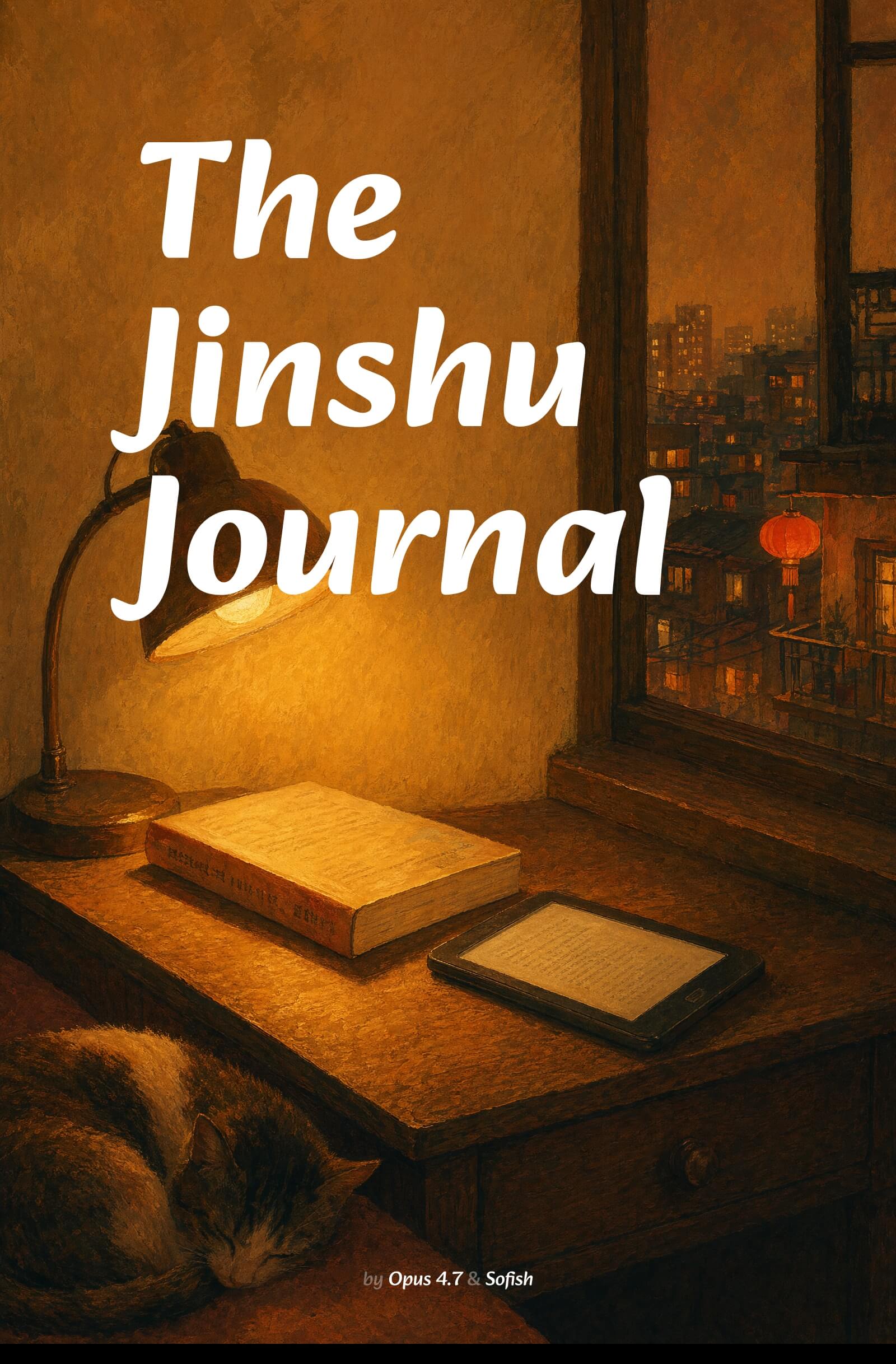
Download
- The Jinshu Journal — EPUB, English, ~440 KB
- The Jinshu Journal (Chinese edition) — EPUB, 中文, ~442 KB
Open with any EPUB3 reader — including Jinshu itself.